
Household Tab
The Household tab is where you set up the people in your plan, the plan-wide settings, and every source of income that isn’t a withdrawal from an account. It’s the first stop when you build a plan.
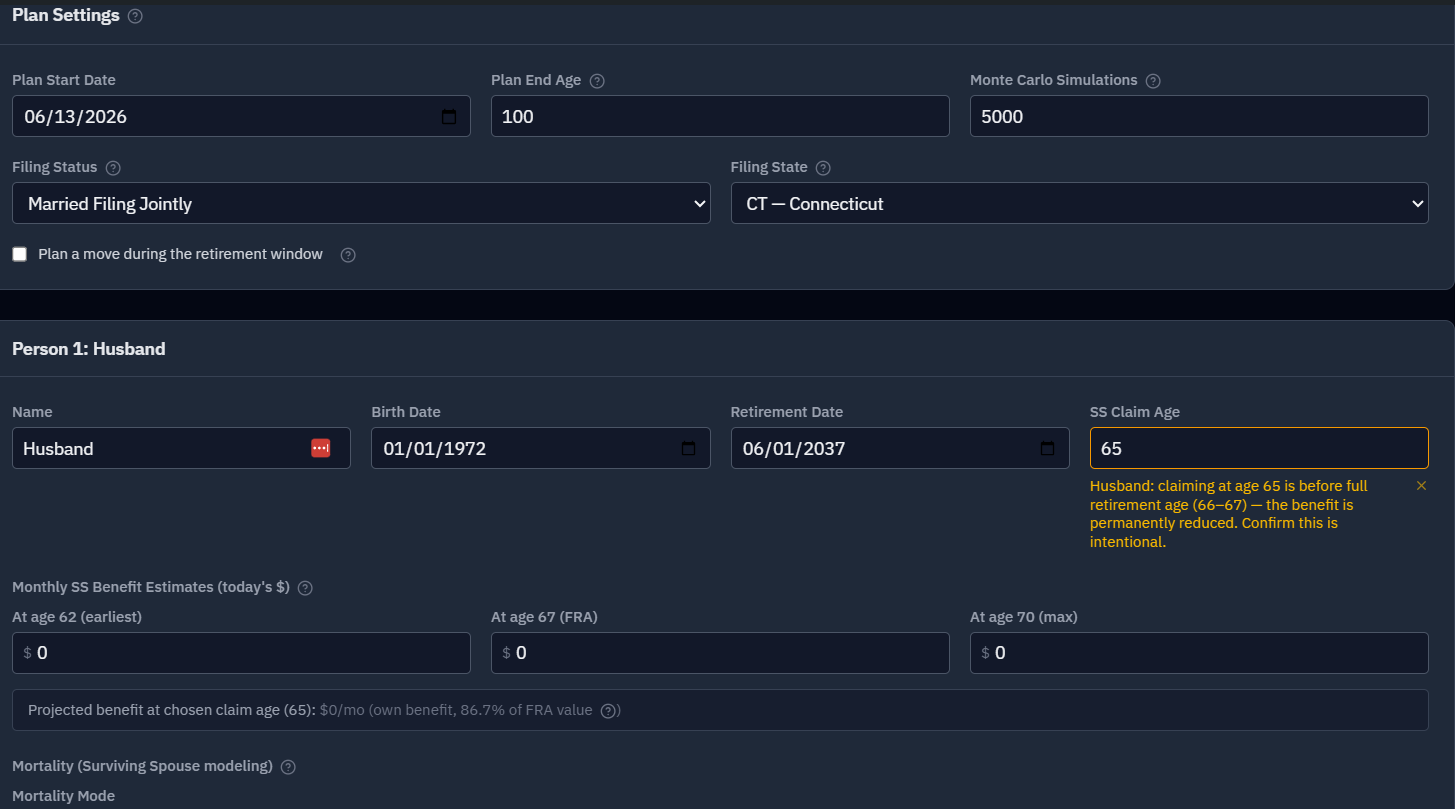
Plan Settings
The first card on the tab covers settings that apply to the whole household:
- Plan start date — the "as of" date for the balances you enter; the simulation begins here and counts everyone’s age from it. The setup wizard fills in today’s date, but after that the date doesn’t move on its own — a saved plan keeps whatever date you set. So when you come back later and update your balances, move this date to match. Leave it a year behind and the model treats everyone as a year younger than they are, starting from this year’s balances. The usual reason to pick something other than today is to match your statements: if you’re entering year-end balances, use the date those balances are from.
- Plan end age — how far out the plan runs (we suggest 95–100), anchored to the first person. It’s a planning horizon, not a prediction of your lifespan — setting it higher is more conservative because your money has to last longer.
- Monte Carlo simulations — how many randomized futures to run (default 5,000; raise to 10,000 for more precision on close calls, at the cost of a little speed).
- Filing status — Married Filing Jointly or Single, which drives the tax brackets. (It switches to Single automatically if you model the death of a spouse.)
- Filing state — your state of residence, which drives state income tax (all 50 states + DC). You can also plan a move during the retirement window — pick a destination state and the effective year — to model the tax impact of relocating. (See moving in retirement.)
The People
You can model one person or a couple. Each person gets their own card, and for each you set:
- Name and birth date — the birth date is used to compute age at every point in the plan.
- Gender — optional. In Stochastic mortality mode it picks which SSA 2021 Period Life Table variant is used to draw that person’s death age. Leave it unspecified to use the unisex table (a 50/50 blend), which is what the model did before this option existed. The choices are Male, Female, or unspecified because the underlying SSA period life tables are indexed by biological sex — this is an actuarial data constraint, not a statement about how you identify. Deterministic mortality mode ignores it entirely: the death age you enter is used as-is.
- Retirement date — when they stop working (and when contributions stop and the health-insurance bridge begins).
- SS claim age and the monthly benefit estimates at 62, Full Retirement Age, and 70. See Social Security.
- Mortality mode — None, Deterministic, or Stochastic, for modeling the death of a spouse. See Surviving spouse.
For couples, each person has their own retirement date and claiming age, since those are often different.
Already retired? Enter the date you actually retired — it can be any time in the past, including before the plan start date above. RetireRange models you as retired from day one of the plan, with no pre-retirement accumulation phase; the only requirement is that the retirement date falls after your birth date.
Below those fields, each person’s card continues with three sections of its own — Health Insurance Premiums, Pension Income, and Annuity Income — covered below. All three are per person, not per household: a pension belongs to whoever earned it, and health coverage runs on that person’s own retirement and Medicare dates.
Importing Your SSA Statement
Rather than copying three numbers off a statement, each person’s Monthly SS Benefit Estimates section has an Import SSA statement (XML) button. Download your statement data from your my Social Security account at ssa.gov (Download Your Statement Data → XML), pick the file, and a preview shows the name, birth date, FRA age, and the three benefit figures it contains. Accept and overwrite writes them in — replacing that person’s name, birth date, and the three estimate rows, and leaving everything else alone.
The file itself is parsed in your browser and never uploaded — RetireRange never receives it. The values you choose to accept (name, birth date, benefit estimates) are saved the same way as anything else you type into the form; we keep the data you asked us to save, not a copy of the file or anything beyond it.
The preview also offers a second mode: Recompute PIA from earnings history. SSA’s own figures assume you keep earning at your current rate until you claim, which overstates the benefit for anyone retiring early. Switch modes and you can set a Stop earning at age (kept as typed, so a 0 stays 0; the field suggests 40–70) and an Annual future earnings ($/yr) figure; RetireRange rebuilds your benefit from the year-by-year earnings record in the file and shows the recomputed 62 / FRA / 70 amounts before you accept. Full detail — including what it doesn’t model — is in Social Security.
Counting a modeled job. In recompute mode there’s also a checkbox: Count this person’s Other Income earned streams as covered earnings. It’s ticked by default when the person has streams on the Accounts tab marked Earned income and assigned to them. With it on, any year one of those streams covers replaces the flat Annual future earnings figure for that year. Self-employment counts at 92.35% of net profit, and each year is capped at that year’s Social Security wage base. Ordinary and tax-free income don’t count, and neither does a stream assigned to Household. Under the recomputed benefits, the panel says how many years of stream earnings it counted and the total. If it found none, it says so and uses the flat figure for every year.
This is the only place a modeled job raises the benefit estimates. If you never import an SSA statement, a part-time job on the Accounts tab won’t change them.
Health Insurance Premiums
This section models the arc from employer coverage to Medicare, and it is set per person.
- Medicare eligibility age — defaults to 65 (a value you type, including 0, is kept; outside 60–75 you get a warning). Set it lower only if you qualify through disability; raise it to model potential future policy changes. It marks where the pre-Medicare bridge ends.
- Medigap (age ≥ eligibility) — a monthly supplement premium that applies from Medicare eligibility onward.
- Pre-Medicare bridge periods — up to five sequential coverage periods covering the gap between retirement and Medicare eligibility. A typical setup is 18 months of COBRA followed by an ACA Marketplace plan.
Each bridge period has four fields:
- Label — free text, e.g. "COBRA" or "ACA Silver".
- Monthly premium — in today’s dollars.
- Duration (months) — leave it blank on the last period and it extends automatically to Medicare eligibility.
- Annual growth % — leave blank to track medical CPI; enter 0 for a flat nominal premium, which is the right choice for a fixed COBRA rate.
Periods chain sequentially from the retirement date, so you set the start once — by setting that date.
Medicare’s own base premiums (Part B and Part D) are not entered here; they live on the Strategy tab. Background on the whole bridge, including how to estimate an ACA premium, is in Health insurance bridge.
Pension Income
Military retirement pay, civilian pensions, or any other fixed recurring income. Each entry has:
- Label and monthly amount (today’s dollars).
- Start date — a pension doesn’t have to begin at retirement.
- End date and Fixed term (stops after) (optional) — for income that stops while you’re alive, such as a term or bridge pension. Leave both blank for a pension that pays for life. See Income sources for how the two interact.
- COLA model — None (fixed nominal, so inflation erodes it), CPI (tracks the simulated inflation path), or Fixed rate (compounds at a rate you enter).
- Survivor benefit % (an out-of-range value is flagged on the field) — the fraction the surviving spouse keeps after the owner’s death. 0% means the pension stops; 55% is the typical military SBP; 50% is common for civilian pensions.
- Military retirement pay (checkbox, off by default) — marks the pension as military retired pay. Only the checkbox does this; the label doesn’t count.
- Government pension — No — private employer, Federal government, or State or local government, and for a state or local pension, Paid by which state. Hidden when Military retirement pay is ticked.
- Federal retirement plan — shown only when Government pension is Federal government: Not sure (the default), CSRS (Civil Service Retirement System) or FERS (Federal Employees Retirement System). Idaho, Minnesota, Nebraska and Vermont exempt CSRS annuities but not FERS ones, and Not sure gets no exemption, so a CSRS annuitant in those states needs to set it. The field’s help text explains how to tell from your CSA-1099. An amber reminder appears on the field when you live in one of those states and haven’t chosen. See Taxes.
Pension income reduces monthly account withdrawals the same way Social Security does, and it is taxable as ordinary income at the federal level. The military and government-pension settings affect state tax only — see Income sources and Taxes.
Annuity Income
Income annuities — the kind you buy with a lump sum in exchange for a stream of payments:
- SPIA (Single Premium Immediate Annuity) — pay once, and income starts right away.
- DIA (Deferred Income Annuity) — pay now, and income starts at a future date you choose.
- QLAC (Qualified Longevity Annuity Contract) — a deferred income annuity bought inside a Traditional IRA, which lets the money used to buy it skip RMDs until payments begin.
The fields mirror pensions (including the optional end date and fixed term — leave the term blank for a life annuity, even one with a period-certain guarantee), plus two of their own:
- Exclusion ratio (errors show on the field) — the tax-free return-of-principal fraction of each payment. Use 0% for an annuity funded from an IRA or 401(k), which is fully taxable; a non-zero figure applies only to a non-qualified annuity bought with after-tax dollars.
- QLAC — tick the box and enter the QLAC premium to defer RMDs on that amount. The premium is subtracted from the Traditional IRA RMD base until payments begin. See RMDs.
Most annuities use a COLA model of None, since fixed nominal payments are the norm.
Dollar amounts on this tab (monthly SS estimates, pension and annuity payments, Medigap and bridge premiums, the QLAC premium, future annual earnings) keep their cents. Optional fields described as "leave blank" can be cleared back to blank.
When guaranteed income exceeds your spending target. Social Security, pension, annuity, rental, and policy-loan income are all subtracted from your spending target dollar for dollar before the portfolio funds the rest — see Understanding your results. If those sources add up to more than the target in a given month, the surplus is invested: it’s deposited into your first Taxable account and added to its cost basis, rather than sitting idle or disappearing. This is most likely to come up for an early retiree who claimed Social Security before ramping up spending, or in a surviving-spouse scenario where benefits jump but spending doesn’t. It requires having at least one Taxable account — with none, the surplus has nowhere to go and is lost, so add one if your guaranteed income could outrun your spending.
Backup & Restore
The Household tab is also where you take an offline copy of your data. Download backup produces a single JSON file holding your scenarios, named strategies, baseline, configuration, and your full optimizer run history.
Restore from backup goes the other way, and it is destructive: after a confirmation dialog it permanently replaces your current scenarios, strategies, baseline, and configuration with the file’s contents. One asymmetry worth knowing — restoring re-hydrates planning inputs only. Your existing optimizer run history is left alone and is not overwritten by the file. A file over 64 MB is refused before it is read, with a message to check that it is a RetireRange backup; real backups are far smaller.
A restore is all-or-nothing. The whole file is checked before anything is replaced. A damaged or hand-edited file is refused with a message naming the problem (for example, "tables.scenarios[0].data is missing or is not JSON text."), and nothing in your account changes. In earlier versions a damaged file could empty your saved scenarios and still report success. Before a restore replaces anything, RetireRange also saves a restore point of your current baseline, so if a restore turns out to be a mistake, support can roll it back. Backups made by earlier versions still restore.
The card shows when you last downloaded a backup and nudges you once it’s been more than 30 days. This is separate from the exports you’d share with someone: a backup is for recovery, not for reading.
Account Tax Types
The last card manages the list of tax types available when you add accounts on the Accounts tab. Eleven ship as defaults:
Traditional and Roth 401(k), 403(b), and 457(b); Traditional and Roth IRA; Taxable; VEBA; and HSA.
VEBA and HSA are flagged as medical-only and shown in purple with a heart, because the model reserves them against healthcare costs rather than pooling them into general spending.
You can add a custom type by typing a name and pressing Add. Custom types can be removed again; the eleven defaults cannot.
Know what a custom type does before you use one. The engine recognizes the eleven built-in names and nothing else, so an account held under a custom type is treated as entirely tax-free: withdrawals create no ordinary income, no RMDs ever apply to it, and heirs inherit it with no tax haircut. That is the correct answer for a genuinely untaxed holding — municipal bonds are the usual case — and it’s why the escape hatch exists.
It is the wrong answer for a typo. Name a type Traditional 401A and the model will quietly stop taxing that account, which makes your plan look better than it is. RetireRange raises a warning on any account whose tax type isn’t built in; treat that warning as a question to answer rather than noise to scroll past. See Taxes for how each built-in type is handled.
Tips
- Start with your best estimates — you can refine any of this later.
- Leave mortality on None for your first run, then turn it on later to test surviving-spouse scenarios.
- If you’ll retire before 65, don’t skip the pre-Medicare bridge — it’s a real and often large cost.
- Download a backup once your plan is set up, and again after any major revision.
Next stop is usually the Accounts tab. For the full first-run walkthrough, see Getting started.