
The Optimizer
Most of RetireRange works one question at a time: you change something, run it, and see what happened. That works well — until the question has more possible answers than you can reasonably try by hand.
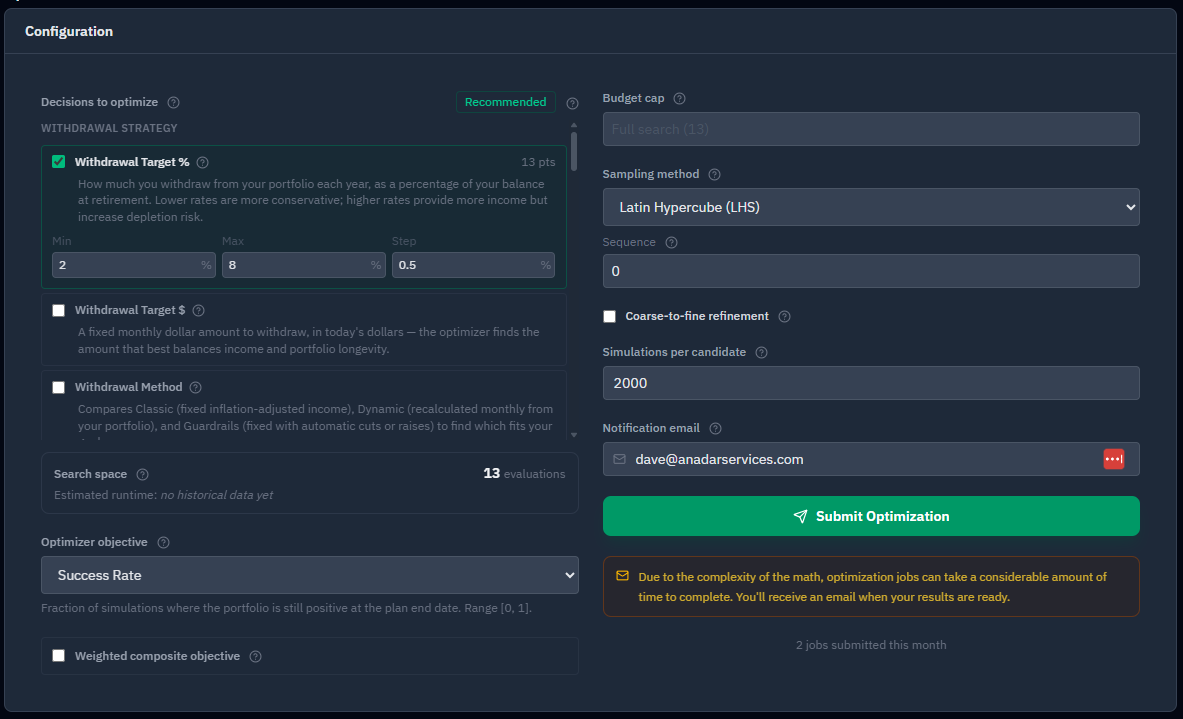
The Optimizer runs that search for you. You choose the decision to explore and the range worth considering; it runs a full simulation for every candidate, scores each against the goal you pick, and ranks them best-first.
Why bother
Some retirement decisions have a lot of plausible answers, and the differences between them are worth real money.
- Social Security claiming age for a couple is 81 combinations (each spouse, 62–70). Testing those by hand isn’t happening — and the spread between the best and worst can be six figures over a lifetime.
- Withdrawal rate is a continuum, and the real question isn’t "does 4% work?" — it’s "how much can I spend and still keep the plan durable?" That’s a search, not a guess.
- Roth conversion amounts, withdrawal order, and when to move states all have the same shape: too many combinations to try, with a meaningful gap between a good answer and the best one.
The Optimizer’s real value isn’t speed. It’s that it checks options you’d never have thought to try — and prices them against your portfolio, spending, and tax picture rather than a rule of thumb.
When to reach for it
The Optimizer is the right tool when a decision has more good answers than you can test by hand and the gap between them is worth real money:
- A single decision with a wide range — a claiming age, a withdrawal rate, a Roth conversion amount, a withdrawal order, or which state to move to and when.
- Several decisions at once, where you want the best combination rather than tuning each in isolation (see below).
- A lever you’ve already found matters — run Sensitivity Analysis first, then point the Optimizer at the top lever to find its best setting, priced against your plan.
When that’s your situation, this is exactly the tool. When it isn’t, the next section points you somewhere faster.
When to use something else
Reaching for the Optimizer first is a common mistake. It answers "what’s the best value for this decision?" — which only helps once you know which decision matters.
| If you’re asking… | Use this instead |
|---|---|
| "Which assumption or decision affects my outcome most?" | Sensitivity Analysis — ranks levers by impact; bring the top one or two back here |
| "Which of these two specific plans is better?" | Compare — runs both against identical market sequences |
| "What happens if I change this one thing?" | A what-if recipe — faster, and you learn more by watching it move |
| "Roughly, what if I retire two years earlier?" | What-If Quick Calculator — instant, no full run |
A useful order: Sensitivity Analysis to find what matters → Optimizer to tune it → Compare to confirm the winner.
How an Optimizer run works
1. Choose what to vary. One or more decisions — your search space: Social Security claiming ages, withdrawal rate and method, account allocation, Roth conversion amounts, how long and how much you keep contributing, or where and when to move states.
2. Choose what to optimize for. Your objective: maximize success rate, worst-case (P10) legacy, median legacy, or after-tax legacy — or a weighted blend.
3. Set any outcome floors you care about. Some questions need two numbers at once — the most I can spend while keeping success above 90%, say. A run still ranks on one objective (or a weighted blend), but you no longer have to apply the second condition by eye. The Outcome constraints panel, under the sampling and refinement controls, does it for you:
- Click + Add constraint and choose a metric — any of the objectives (Success Rate, Shortfall Rate, Median Legacy, After-Tax Legacy, Income Stability, Lifetime Social Security, Lifetime Taxes Paid) — a comparator (≥, >, ≤, <), and a threshold.
- Rate metrics take whole percents: enter
90, not0.9. - Add more than one and they combine with AND — every constraint has to hold.
- The threshold is checked before the run. A non-number, a rate outside 0–100%, or an empty threshold blocks the run with a message on that row. Changing a constraint’s metric between a percentage and a dollar measure clears the threshold, so re-enter it.
- If your ranges leave nothing to test, the message names the decision and the problem (for example, "Withdrawal Target %: the step is 0. Enter a step greater than zero."). Min, Max, Step and composite weights accept decimals such as 0.25.
Candidates that miss a constraint are still shown, greyed out with their rank struck through, and a chip in the results summary reads "N excluded by outcome constraints" alongside the existing pruned and duplicate counts. That’s deliberate: a table showing fifty greyed-out rows tells you "nothing you searched met your floor", which is a completely different finding from an empty table telling you "the search found nothing." Hovering an excluded row lists which constraints it failed.
4. Run it, and read the ranking. Every candidate is scored and listed best-first, with its full settings visible.
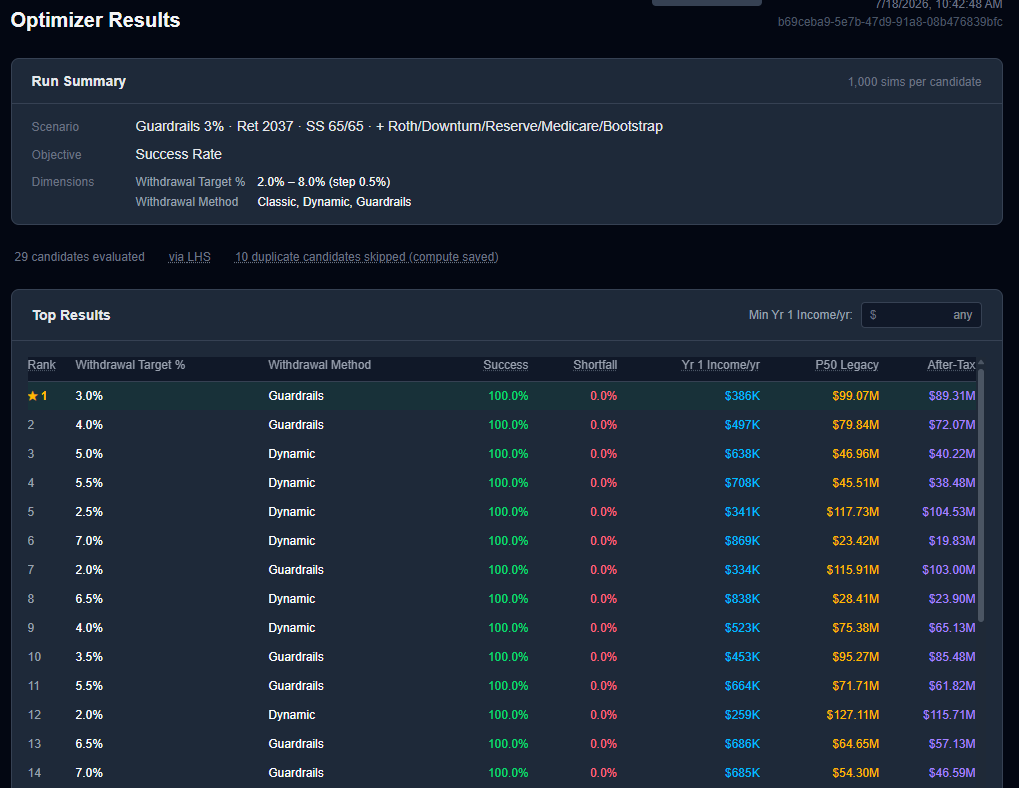
Why a dimension might not appear. A dimension only shows up when your plan actually has that lever to turn — the Optimizer won’t offer to optimize something your scenario can’t change. So the list you see depends on how your plan is set up, and if one you expected is missing, it’s almost always because your scenario doesn’t include the thing it would vary.
For example: Contribution End Year and Contribution Amount % appear only when at least one account has an ongoing contribution rule — any account type, not just a 401(k). If nothing is contributing (you’re already retired, say), they won’t show; add a contribution on the Accounts tab and they appear.
What each decision needs. The full map of which decisions the Optimizer offers, and when each one shows up:
| Decision | Appears when… |
|---|---|
| Withdrawal Target %/$, Method, Target Type | Always |
| Social Security claim age · Retirement year (Person 1) · Filing state | Always |
| Person 2’s SS claim age / retirement year | There’s a second person in the plan |
| Allocation % | Allocation mode is Proportional |
| Allocation priority order | Allocation mode is Ordered |
| Upper / Lower guardrail % | Withdrawal method is Guardrails |
| Roth conversion amount / start / end year | You’ve added Roth conversion rules (one set per rule) |
| Spending phase end age / amount / medical inflation | Multi-phase spending is on |
| Contribution end year / amount % | An account has an ongoing contribution |
| Move year | You’ve set a destination state (a planned move) |
| Lump Sum Source (per event) | You’ve added a One-Time Withdrawal on the Strategy tab, and you hold at least one non-medical account |
If a decision you want isn’t listed, set up the thing it depends on (the right column) and it appears.
Search several decisions at once
You’re not limited to one decision. Add several dimensions — say claiming age, withdrawal rate, and Roth conversion amount — and the Optimizer searches the combinations, ranking the best joint setting rather than the best of each on its own.
That matters because these decisions interact: the withdrawal rate you can sustain may depend on when you claim Social Security, and the ideal Roth amount can depend on both. Tuning them one at a time can miss the combination that actually works best — searching them together finds it. It’s something no rule of thumb and no by-hand approach can really do.
The trade-off is time: every dimension you add multiplies the candidates, so a full grid grows explosively — and takes correspondingly longer to run. Keep it manageable — start with one or two, lean on Latin Hypercube sampling and a budget cap for larger spaces, and let it run in the background (next).
⏳ What to expect: this can take a while
The key thing to understand before you start: every candidate is a full Monte Carlo simulation — thousands of randomized futures. The work adds up fast.
- A simple one-variable sweep (five claiming ages) is quick.
- A multi-variable search can mean hundreds or thousands of candidates, each thousands of simulations. That can run many minutes — for large searches, hours. Combining variables in a full grid grows the work explosively: every added dimension multiplies it.
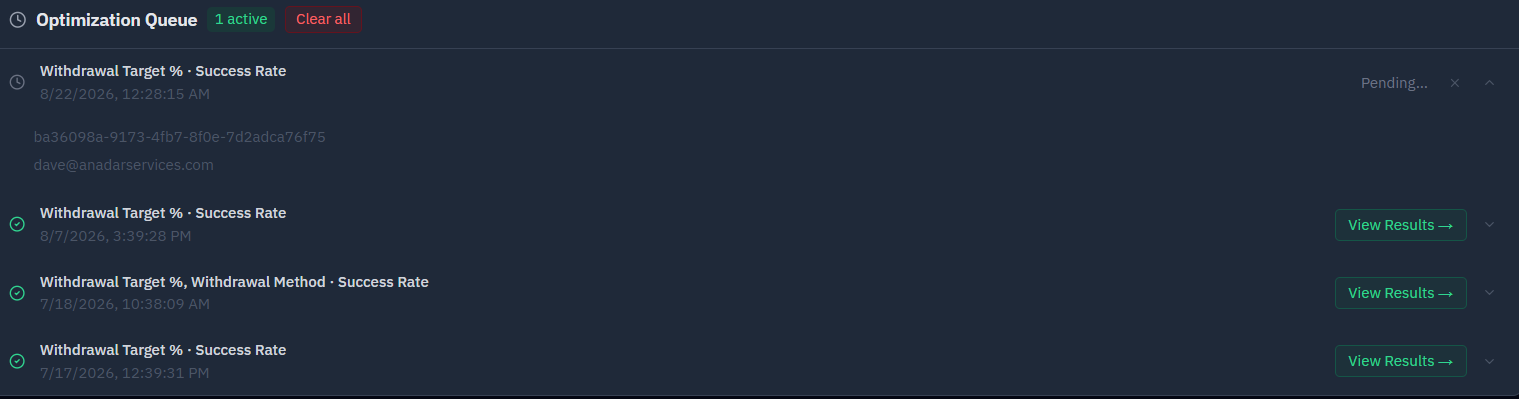
The Optimizer runs as a background job on our servers — not in your browser. Submit it and walk away: close the tab, shut your laptop, head to work, make dinner, mow the lawn. The search keeps running on our machines whether or not your computer is even on, and emails you the moment it’s done. You never sit and watch a progress bar — and you never have to leave anything open.
When you submit, your run joins the processing queue and shows its position — for example, #2 in queue — so you always know where it stands. You can watch it advance, or just close the tab and wait for the email.
Keeping runs manageable
- Start with one or two variables. Add more once you’ve narrowed things down.
- Go coarse, then fine. A wide, low-resolution sweep finds the promising region; a tighter search then zooms in.
- Set a budget cap. Here "budget" means how many candidates the search is allowed to evaluate — a computing limit, not a dollar amount. Cap it at, say, 500 and the Optimizer samples 500 candidates from the space rather than grinding through every combination, however large the space is.
- Use efficient sampling for big spaces. Latin Hypercube Sampling (LHS) covers a large space well with far fewer runs than a full grid; Random is simplest to budget; Grid is most thorough and grows fastest.
- Lower the simulation count while exploring, then confirm your finalists at full precision.
Your jobs and run history follow your account, not your browser
Both lists on the Optimizer tab — the Optimization Queue (your submitted jobs, with live progress and a cancel option) and Run History (completed runs) below it — are tied to your account, not to one browser or device. Submit a run on your phone and open the Optimizer later on your laptop, signed into the same account, and you’ll see the same jobs: pending, running, completed, or failed, each with the label you gave it. A failed job shows its actual error message on every device, not just the one that submitted it.
If Run History fails to load — an authentication, server, or network hiccup — you’ll see a red banner naming the error and a Retry button, instead of the plain "No saved runs yet" message an actually-empty history shows. Past runs are stored per-account, so if it keeps failing on one browser or device but not another, sign out and back in, then retry. A separate banner appears if a run completes but fails to save to Run History — your results above are intact either way, but that particular run won’t show up in the list.
Getting your results by email — and who can see them
When a run finishes, RetireRange emails you a "View full results" link so you can pick up where you left off from any device. A few things worth knowing about that link:
- Opening the link tidies the address bar. The emailed link carries its access token after a #, and the results page removes the token from the address bar once it opens, which keeps it out of server logs and browser history. After that the address bar shows the plain results URL, which needs sign-in unless the page is still open, so bookmark the page from job history rather than relying on the token. Older links still work.
- The emailed link works for 30 days. After that it stops opening the results; the page shows an amber "This link is no longer valid" banner and the Apply to Scenario button is replaced by an Open Planner → link. The 30-day window is the same for every emailed link and can’t be extended by the recipient. You haven’t lost the run, though — open it yourself from the results section at the bottom of the Optimizer (your job history) and click View Results →. That uses your logged-in session, not the email link, so it keeps working for the job’s full retention life (see the next point).
- Your own access is separate and unaffected. Opening the run from inside the planner — Optimizer tab → job history — uses your logged-in session, not the emailed link, so it keeps working for the job’s full retention life (about 90 days) regardless of the 30-day email window.
- You can disable a link early. On your own results page (the one you reach from job history, not the emailed link), a Disable link button sits in the header next to Export Excel. Click it, confirm, and the emailed link is permanently revoked — anyone who tries it, including you, then sees "This link is no longer valid." Your in-planner access still works. This can’t be undone: if you need to reshare later, re-open the results in the planner and forward the fresh link (or re-run). Only the run’s owner sees the button.


Are my optimizer results private? Yes. Your results are tied to your account — another person can only see them if you choose to share the emailed "View full results" link, which expires in 30 days and can be revoked from the results page. Knowing or guessing a job’s URL is not enough on its own.
A first run, start to finish
If you’ve never used it, this takes about ten minutes and answers a real question.
The question: "When should I claim Social Security?"
- Open the Optimizer with your baseline scenario loaded.
- Add one dimension: Social Security claim age, range 62 to 70. (For a couple, add it for both — it explores the combinations.)
- Set the objective: maximize success rate.
- Run it. This is one of the cheapest searches, so it comes back quickly.
- Read the ranking. Note the spread between best and worst. If it’s a point or two, claiming age barely matters for your plan — that’s a real answer. If it’s ten points, it matters a great deal.
- Save your top two as named strategies.
- Open Compare and run those two against identical market sequences. That’s your decision.
Then re-run step 3 with after-tax legacy as the objective. If a different age wins, you’re looking straight at the trade-off — and that’s the kind of insight the Optimizer exists to surface.
Choosing your objective
You can optimize for a single goal or a weighted combination — commonly success rate, worst-case (P10) legacy, median legacy, or after-tax legacy; or minimizing income variability.
Caution about using "Lifetime Taxes Paid." Don’t optimize to minimize lifetime taxes on its own. At high withdrawal rates, taxes fall simply because the portfolio depletes faster — fewer dollars left to tax. A "low tax" result can be a failing plan. Find the high-success-rate region first, then compare taxes within it. Treat taxes as a tiebreaker, never the headline.
Reading the results
Results come back as a ranked list — plus a chart or scatter plot for multi-variable searches — with every candidate’s full settings visible. When one looks promising, save it as a named strategy.
Then do the step people skip: confirm your finalists on the Compare tab.
A dash means the value wasn’t available for that run, not zero. If a figure couldn’t be computed (for example, after-tax legacy on a candidate restored from an older run), tables and the chart legend show —. In the Excel export that cell is left empty, and on the chart the After-Tax Legacy line has a gap at that candidate. A genuine zero still shows as $0.
Once results appear, the Optimizer tab also shows the results disclaimer banner.
Every candidate in a run now faces identical simulated markets. One seed governs the whole search — the coarse pass, the re-evaluation of the top candidates, and the fine pass around the winner — so the difference between the plan ranked first and the plan ranked second is the strategy, not two different rolls of the dice. That seed is stored with the job, so a run that resumes after an interruption picks up the same markets rather than quietly starting a new set. It’s the same principle the Compare tab has always used, now applied inside the optimizer.
That removes the largest source of false precision in a ranking. Two things still deserve care:
- Sampling error hasn’t gone away. Identical markets make the comparison clean, but every candidate’s absolute numbers still come from a finite sample. At 5,000 simulations the standard error on a success rate is around ±0.7 points. Raise the count and re-run the promising region for a close call — noise shrinks with the square root of the count, so 20,000 simulations roughly halves it.
- Stochastic mortality partially breaks the pairing. Death ages are drawn from the same random stream as market returns, so two candidates can consume it slightly differently and end up with different lifespans at the same simulation. Switch mortality to deterministic before acting on a ranking whose top few rows are close together. (This is a pre-existing quirk of how mortality is sampled, not something the optimizer introduces — the Compare tab carries the same caveat.)
A way to measure what’s left on your own run. Look for two candidates that are nearly the same plan in substance — say, drawing 20% from your 401(k) and 80% from your IRA versus 30% and 70%, when both are pre-tax accounts taxed the same way on withdrawal. Those two should score almost identically. Whatever gap you see between them is close to pure noise, and tells you how large a gap to ignore elsewhere in the ranking.
Confirm your finalists on Compare regardless. It’s a second, independent look at the decision, and it’s cheap.
None of this makes a close ranking useless. When several candidates land in a band you can’t separate, that is the finding: the decision doesn’t matter much for your plan, and you can choose among them on other grounds.
Treat the Optimizer as the tool that narrows the field, and Compare as the tool that picks the winner.
Optimize a specific decision
Step-by-step guides for each search. If you know your question but not which dimension it maps to, start here:
Answer common questions with the Optimizer — a question-first playbook mapping real questions ("How much can I safely spend?", "Should we delay Social Security?") to the exact run to set up.
Not sure the Optimizer is even the right tool for your question? See How to answer your retirement questions — a map from every question to the fastest way to answer it, across all of RetireRange’s tools.
| Guide | The question it answers |
|---|---|
| Social Security claiming ages | When should each of us claim — and what does delaying actually cost? |
| Withdrawal rate & method | How much can I spend, and should spending flex with the market? |
| Roth conversion amounts | How much should I convert, and in which years? |
| Account-type allocation | Which accounts should I draw from, and in what order? |
| Where & when to move | Would relocating save enough tax to matter — and what’s the best year? |
| Downturn defenses | How big a cash reserve, and what trigger — how much protection is worth buying? |
| Lump sum source | Which account should fund a big one-time expense? |
For what the result numbers mean, see Understanding your results.
Before you act on a result
A ranking is a modeled estimate based on the assumptions you entered — not a prediction, and not a recommendation. It’s a sharper starting point for your own thinking and your next conversation with an advisor. Change an assumption and the "best" answer can change with it, which is exactly why it’s worth testing more than one objective before deciding.
RetireRange is for educational and planning purposes only and is not financial, tax, or investment advice. The Optimizer searches the assumptions you provide; its rankings are modeled estimates, not predictions or recommendations. Consult a qualified financial planner for advice specific to your situation. See Limitations.